Showing posts with label How To. Show all posts

Thursday, April 20, 2017

TC Cup of Codes: Separate Numbers from a String in Javascript

So this morning, a friend asked how to separate numbers from a string using Javascript. He wants to use car plates as input, for example: "AB1234DCD" and wants the output to be "AB 1234 DCD".

After spent some time coding Googling with various possible algorithms keywords, I finally got the answer from.....http://stackoverflow.com. :D

Using split.(/(\d+)/) it will automatically split the string "AB1234DCD" into an array "AB", "1234", "DCD". And after that, you can do anything you want to the array. In the code below, I use join(" ") to append the array and add white space between each element.


1
2
3
4
5
6
7
8
9
function SplitPlate() {
   var plateOld = document.getElementById('oldPlate').value;
   arr = plateOld.split(/(\d+)/)
   plateFinal = arr.join(" ");
   //alert(test);
 
   var plateNew = document.getElementById('newPlate');
   plateNew.innerHTML = plateFinal;
 }


function SplitPlate() {
   var plateOld = document.getElementById('oldPlate').value;
   arr = plateOld.split(/(\d+)/)
   plateFinal = arr.join(" ");
   //alert(test);

   var plateNew = document.getElementById('newPlate');
   plateNew.innerHTML = plateFinal;
 }

Thursday, April 13, 2017

TC Learning Notes: Add Social Media Links to Youtube Channel

I am not new to Youtube. It has been my go source to find tutorials, entertainment, funny bits, live performances and so on. What I'm new at, is being a creator. And because of the influence of this awesome film-maker, named, Casey Neistat, I finally upload my first video 5 months ago.

Now, in my spare time, I try to learn about video-editing and about the platform some more. Whether about its settings, designs, analytics, and also the main-awesomeness, monetization!

There are so many things to learn and what I want to show you right now is how to put social media links on the channel art.

1. Sign in to your account and open your Youtube channel.


2. Click the gear button on the right side under the channel art.

3. Make sure this option is active. And click save to close the window.


4. Click "Edit Links" on the right top of your channel art to add the links.


5. Add your social media url.


6. Your links are ready to be clicked!

Saturday, April 8, 2017

TC Cup of Codes: Display Line of Codes on A Blog Post

I want to learn programming again.

I've been away for too long from this "world" and I miss it so much. The creative process. The late-nights. The "A-ha" moments. Even the stressed-out by.

So, one of the main purpose of this blog is to document all the lessons I've learnt. And it will look good if I can show the lines of codes properly on a post.

I've looked it up, and here's how to display your codes better on a blog post. P.S.: I'm using blogger account for this tutorial.

********

1. Log in to your blogger account.

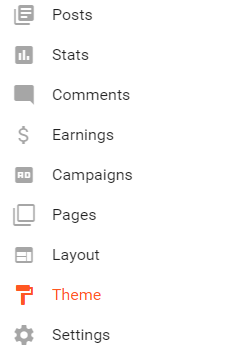
2. Click on Theme from the side menu

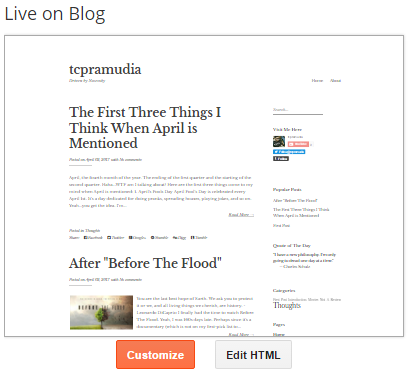
3. Click Edit HTML

4. Insert the following codes in the <head> section of your HTML:


01
02
03
04
05
06
07
08
09
10
11
12
13
14
<pre class="brush: html" name="code"><script src="http://alexgorbatchev.com/pub/sh/2.1.364/scripts/shCore.js" type="text/javascript"></script>
<script src="http://alexgorbatchev.com/pub/sh/2.1.364/scripts/shBrushJScript.js" type="text/javascript"></script>
<script src="http://alexgorbatchev.com/pub/sh/2.1.364/scripts/shBrushXml.js" type="text/javascript"></script>
<script src="http://alexgorbatchev.com/pub/sh/2.1.364/scripts/shBrushCss.js" type="text/javascript"></script>
<script src="http://alexgorbatchev.com/pub/sh/2.1.364/scripts/shLegacy.js" type="text/javascript"></script>
<link href="http://alexgorbatchev.com/pub/sh/2.1.364/styles/shCore.css" rel="stylesheet" type="text/css"></link>
<link href="http://alexgorbatchev.com/pub/sh/2.1.364/styles/shThemeDefault.css" rel="stylesheet" type="text/css"></link>    
<script language="javascript">
window.onload = function () {
    dp.SyntaxHighlighter.ClipboardSwf = 'http://alexgorbatchev.com/pub/sh/2.1.364/scripts/clipboard.swf';
    dp.SyntaxHighlighter.HighlightAll('code');
    dp.SyntaxHighlighter.BloggerMode();
}
</script></pre>


<pre class="brush: html" name="code"><script src="http://alexgorbatchev.com/pub/sh/2.1.364/scripts/shCore.js" type="text/javascript"></script>
<script src="http://alexgorbatchev.com/pub/sh/2.1.364/scripts/shBrushJScript.js" type="text/javascript"></script> 
<script src="http://alexgorbatchev.com/pub/sh/2.1.364/scripts/shBrushXml.js" type="text/javascript"></script>
<script src="http://alexgorbatchev.com/pub/sh/2.1.364/scripts/shBrushCss.js" type="text/javascript"></script>
<script src="http://alexgorbatchev.com/pub/sh/2.1.364/scripts/shLegacy.js" type="text/javascript"></script>
<link href="http://alexgorbatchev.com/pub/sh/2.1.364/styles/shCore.css" rel="stylesheet" type="text/css"></link>
<link href="http://alexgorbatchev.com/pub/sh/2.1.364/styles/shThemeDefault.css" rel="stylesheet" type="text/css"></link>     
<script language="javascript">
window.onload = function () {
    dp.SyntaxHighlighter.ClipboardSwf = 'http://alexgorbatchev.com/pub/sh/2.1.364/scripts/clipboard.swf';
    dp.SyntaxHighlighter.HighlightAll('code');
    dp.SyntaxHighlighter.BloggerMode();
}
</script></pre>
If you need to display certain other languages, you can use other brushes to display the codes better. Here are some of the list:

http://alexgorbatchev.com/SyntaxHighlighter/manual/brushes/


5. Save your changes

6. Use the following into the <body> whenever you want to put your code:

  
1
2
3
4
5
<div style="text-align: justify;">
<pre class="brush: html" name="code"><pre class="brush: javascript" name="code"># Your Javascript Code</pre>
</pre>
</div>
<div style="text-align: justify;">


<div style="text-align: justify;">
<pre class="brush: html" name="code"><pre class="brush: javascript" name="code"># Your Javascript Code</pre>
</pre>
</div>
<div style="text-align: justify;">

************

Thats it!

Now you can display some codes on your blog post.

Sources: